
How to Change Your Sagar Club Password
Changing your password from inside the app takes under a minute and immediately signs out every other device.
Table of Contents
Steps
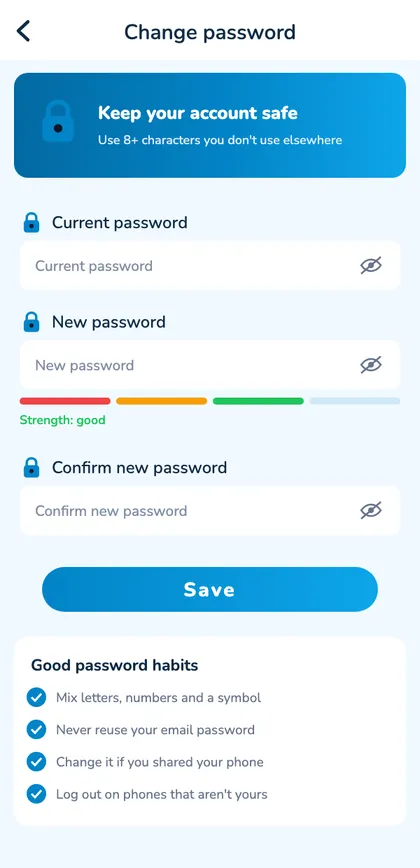
- Log in and open Account.
- Tap Change password.
- Enter your current password.
- Enter and confirm a new one.
- Tap Save.
When to change it
- After a login alert you don’t recognise.
- After using a shared computer.
- If someone saw you type it.
- If you reused it elsewhere.
Strong passwords
| Example | Strength |
|---|---|
| Sagar@123 | Weak |
| YourName1990 | Weak |
| river-lamp-mango-47 | Strong |
Forgot the current one? Use forgot password.
A password change in real life
A notification says a new device has logged in to your account. It wasn’t you. You open Sagar Club on your own phone, go to Account → Change password, enter the current password and a new passphrase twice, and tap Save. Every other session ends immediately – including the intruder’s. You check login security, then tell support the time of the alert.
Building a memorable password
- Picture three unrelated things.
- Join them with hyphens.
- Add a number that means nothing to anyone else.
- Save it in your phone’s password manager.
What changes – and what doesn’t
| Item | After a change |
|---|---|
| Other devices | Signed out |
| This device | Usually stays logged in |
| UID, history, VIP | Unchanged |
| Bound email’s password | Unchanged – it’s separate |
If you can’t change it
If the app rejects your current password even though you’re logged in, it may have been changed on another device, or a password manager filled an old one at login. Log out and use forgot password to set a fresh one – and save it properly this time.
Open Sagar Club the safe way
Use the official app or website. One Sagar Club account works on every device.
Frequently asked questions
Do I need an OTP?
No – just the current password.