
Sagar Club Login Guide
The Sagar Club login uses your registered mobile number (or a bound email) and your password. No SMS code is needed for a normal login.
Here’s how to sign in on every device and what to do when it doesn’t work.
Table of Contents
Log in with your phone number
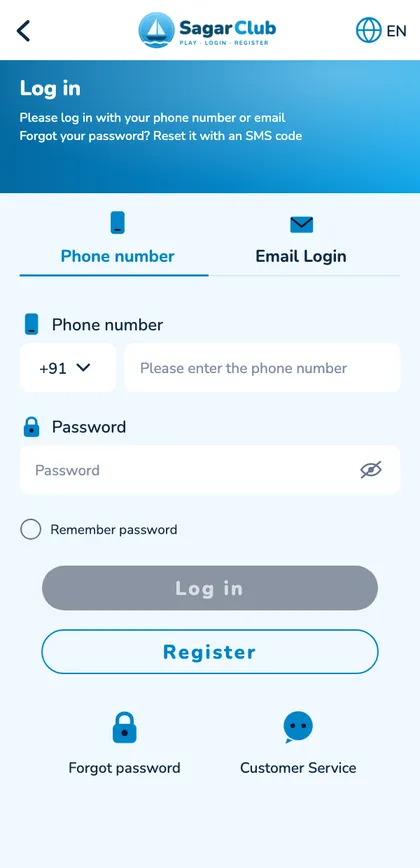
- Open the app or official website.
- Tap Log in – Phone number tab.
- Keep +91, type 10 digits.
- Type your password.
- Tap Log in.
Log in with email
Works only after you bind an email in your profile. Tap the Email Login tab, enter the email and your usual password.
Log in on a laptop
Use Chrome, Edge, Firefox or Safari. On shared computers, use a private window and log out afterwards.
Fixing login problems
Account does not exist
Check the number and SIM.
Incorrect password
Use the eye icon; reset after two tries – forgot password.
Too many attempts
Wait 30 minutes.
Keeps logging out
Another device may be logging in – change your password.
Login security
- Unique password.
- Never share codes.
- Official app or bookmark only.
- Login alerts on.
A login, step by step, slowly
You open the app and see the welcome screen. You tap Log in; the Phone number tab is highlighted and +91 is already in the country box. You type your ten digits and check them. In the password box your keyboard capitalises the first letter, so you tap the eye icon, spot it and fix it. You leave ‘Remember password’ unticked because this is a shared tablet. You tap Log in and the lobby appears with your nickname at the top. When you’re done, you log out from the Account page.
Logging in after a long break
- Update the app first.
- Try your password once, carefully.
- If it fails, reset it instead of guessing.
- Check the linked number is still yours.
- Look at notifications for any login alerts you missed.
Logging in on two phones
You can use one account on more than one device, but a fresh login may end the older session – the first phone will show ‘session expired’. If you see that without logging in elsewhere, change your password straight away.
Signs of a fake login page
| Sign | Why it matters |
|---|---|
| You arrived from a forward or ad | Common source of fakes |
| The domain has an extra word or letter | Look-alike site |
| It asks for an OTP to log in | Real login never does |
| A pop-up pushes a bonus | Pressure tactic |
“Can I log in without my SIM?”
Yes – a normal login doesn’t need SMS. Email login works if you bound an email.
“Why was I logged out?”
Another device logged in, the app updated, or your browser cleared cookies.
Where your login lives
When you log in, the server checks your number and password and gives your device a session token. That token is what keeps you logged in. Clearing app data or browser cookies deletes it – you’ll need to log in again, but nothing about your account changes. Changing your password cancels every token at once, which is why it’s the fastest way to remove anyone who shouldn’t be there.
Login checklist
- Official app or bookmark.
- Ten digits, no 0 or +91.
- Password checked with the eye icon.
- Latest app version.
- VPN off, decent signal.
- Reset after two wrong tries.
Open Sagar Club the safe way
Use the official app or website. One Sagar Club account works on every device.
Frequently asked questions
Does login need an OTP?
No.
Can I log in on two phones?
Yes, but a new login may end the older session.